Building a React Water Tracker
Introduction
I recently completed Meta's React Basics Course, and while the final project—a calculator app—was a solid introduction, I wanted to challenge myself with something more complex. I decided to build a water consumption tracker that would push me to really understand React's core concepts.
Why a water tracker? It's a practical app people could actually use, and it gave me the perfect excuse to dive deep into state management, localStorage persistence, time-based logic, and component architecture. Plus, it's a nice homage to the classic React counter tutorial—just with a lot more functionality!
What the App Does
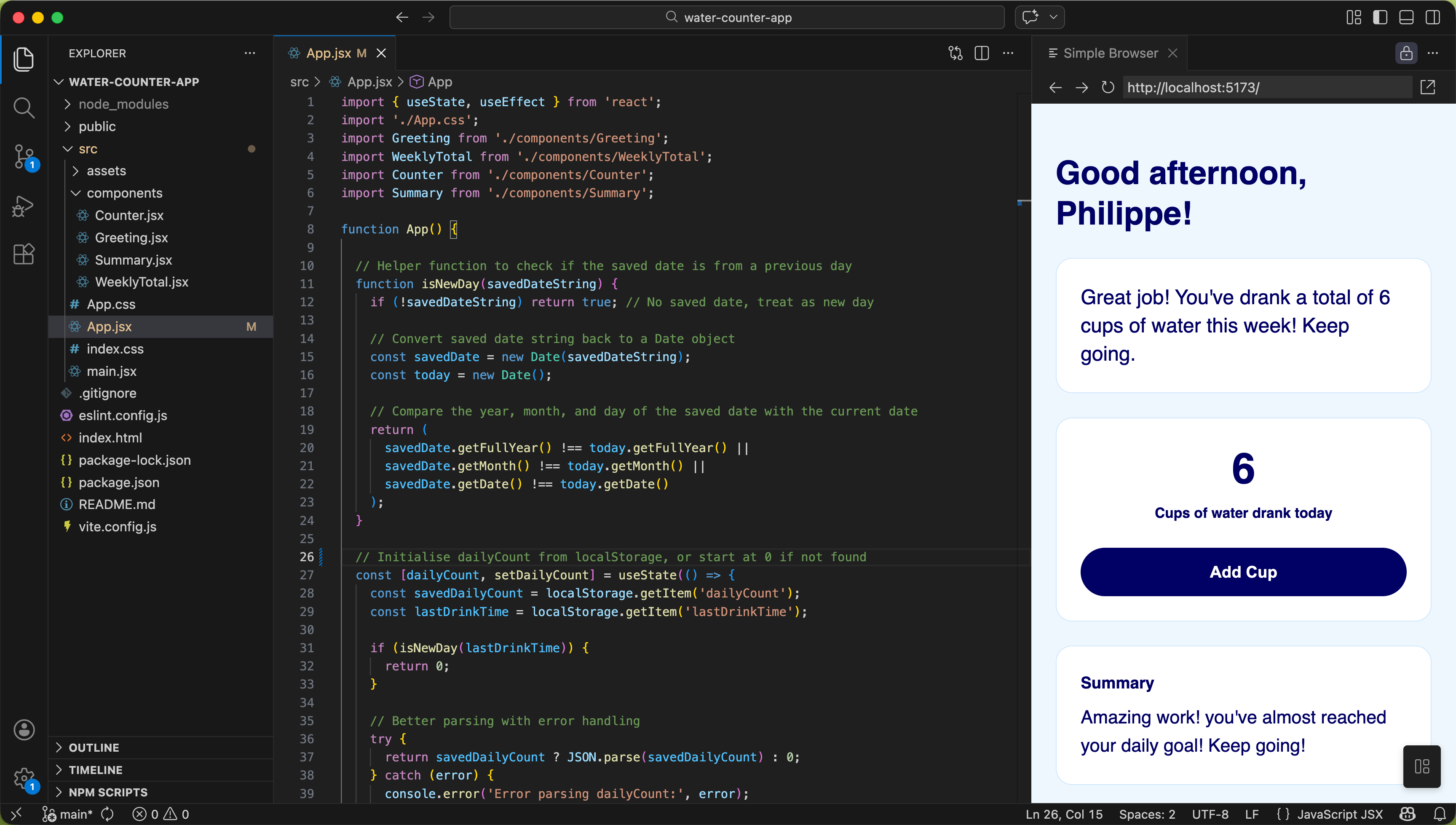
The app tracks daily water consumption with a simple click interface. Users click "Add Cup" to log each glass of water they drink. The app displays:
- A personalised greeting based on time of day
- Weekly total cups consumed
- Daily cup count (max 8 per day)
- Motivational messages that change based on progress
The clever part? All data persists in localStorage, the daily counter automatically resets at midnight, the weekly counter resets every Monday, and there's a cooldown timer to prevent spam clicking.
Core React Concepts I Applied
1. Component Architecture
I broke the app into four focused components:
Greeting.jsx- Personalised time-based greetingWeeklyTotal.jsx- Displays accumulated weekly countCounter.jsx- Main interaction (the button and daily count)Summary.jsx- Contextual motivational messages
Each component has a single responsibility, making the code easier to maintain and understand.
2. Lifting State Up
This was one of the most important patterns I learned. Both dailyCount and weeklyCount need to be updated when the button is clicked, and multiple components need to display this data. The solution? Keep the state in the parent App.jsx and pass it down as props.
// State lives in App.jsx
const [dailyCount, setDailyCount] = useState(0);
const [weeklyCount, setWeeklyCount] = useState(0);

// Pass down to child components
<Counter count={dailyCount} onDrink={handleDrinkCup} />
<WeeklyTotal weeklyCount={weeklyCount} />
3. Props and Callback Functions
The Counter component receives:
count(data flowing down)onDrink(function to update parent state)
This pattern of "data down, events up" clicked for me during this project. The child component doesn't need to know how to update state—it just calls the function the parent provides.
4. Conditional Rendering
I used two different approaches for conditional logic:
Switch statement in Greeting.jsx:
switch (timeOfDay) {
  case 'morning':
    greeting = `Good morning, ${user}!`;
    break;
  case 'afternoon':
    greeting = `Good afternoon, ${user}!`;
    break;
  // etc...
}
If/else in Summary.jsx for ranges:
if (count === 0) {
  message = "Start your hydration journey!";
} else if (count <= 2) {
  message = "Good start, keep going!";
} else if (count <= 5) {
  message = "You're doing well, stay hydrated!";
}
// etc...
Advanced Features: Where It Got Interesting
localStorage Persistence
This was my first time implementing data persistence. The pattern I learned:
1. Read from localStorage on initialisation using lazy initialisation:
const [dailyCount, setDailyCount] = useState(() => {
  const saved = localStorage.getItem('dailyCount');
  return saved ? JSON.parse(saved) : 0;
});
2. Write to localStorage whenever state changes using useEffect:
useEffect(() => {
  localStorage.setItem('dailyCount', JSON.stringify(dailyCount));
}, [dailyCount]);
The key learning: localStorage only stores strings, so I needed JSON.stringify() to save and JSON.parse() to retrieve. I also added error handling with try-catch in case the data got corrupted.
Time-Based Reset Logic (The Hard Part!)
This was honestly the most challenging feature. I needed the daily counter to reset at midnight and the weekly counter to reset every Monday.
The approach:
- Save a timestamp whenever a cup is added
- On app load, compare the saved date to today
- If it's a different day/week, reset the appropriate counter
Daily Reset - The isNewDay Function:
function isNewDay(savedDateString) {
  if (!savedDateString) return true;

  const savedDate = new Date(savedDateString);
  const today = new Date();

  return (
    savedDate.getFullYear() !== today.getFullYear() ||
    savedDate.getMonth() !== today.getMonth() ||
    savedDate.getDate() !== today.getDate()
  );
}
This checks if the year, month, or day are different. If any of them don't match, it's a new day.
Weekly Reset - The isNewWeek Function:
This was trickier because I needed to:
- Figure out which Monday each date belongs to
- Handle the Sunday edge case (Sunday is 6 days from Monday, not -1!)
- Compare just the dates, not the times
function isNewWeek(savedDateString) {
  if (!savedDateString) return true;

  const savedDate = new Date(savedDateString);
  const today = new Date();

  // Calculate this week's Monday
  const currentDay = today.getDay();
  const daysFromMonday = currentDay === 0 ? 6 : currentDay - 1;
  const currentMonday = new Date(today);
  currentMonday.setDate(today.getDate() - daysFromMonday);
  currentMonday.setHours(0, 0, 0, 0);

  // Calculate saved date's Monday
  const savedDay = savedDate.getDay();
  const savedDaysFromMonday = savedDay === 0 ? 6 : savedDay - 1;
  const savedMonday = new Date(savedDate);
  savedMonday.setDate(savedDate.getDate() - savedDaysFromMonday);
  savedMonday.setHours(0, 0, 0, 0);

  return currentMonday.getTime() !== savedMonday.getTime();
}
The setHours(0, 0, 0, 0) was crucial—without it, I was comparing exact millisecond timestamps, which would always be different even for the same Monday!
Integrating the Reset Logic:
I used lazy initialisation to check for resets before setting initial state:
const [dailyCount, setDailyCount] = useState(() => {
  const saved = localStorage.getItem('dailyCount');
  const lastDrinkTime = localStorage.getItem('lastDrinkTime');

  if (isNewDay(lastDrinkTime)) {
    return 0; // New day, reset!
  }

  return saved ? JSON.parse(saved) : 0;
});
This runs before the first render, so users never see a flash of incorrect data.
Button Cooldown Timer
To prevent spam clicking, I added a 30-second cooldown:
const [isOnCooldown, setIsOnCooldown] = useState(false);

const handleDrinkCup = () => {
  setDailyCount(prev => prev + 1);
  setWeeklyCount(prev => prev + 1);

  localStorage.setItem('lastDrinkTime', new Date().toISOString());

  setIsOnCooldown(true);
  setTimeout(() => {
    setIsOnCooldown(false);
  }, 30000);
};
Then disabled the button during cooldown:
<button disabled={count >= 8 || isOnCooldown}>
Challenges & What I Learned
1. Date logic is hard!
Calculating which week a date belongs to took me multiple attempts. I learned to break complex problems into smaller pieces and test edge cases (like Sunday).
2. The functional form of setState
Using prev => prev + 1 instead of just count + 1 was new to me. It ensures you're always working with the latest state value, especially important when updating multiple states in one function.
3. localStorage can contain bad data
I learned to add error handling because localStorage might contain "undefined" or corrupted JSON. Always validate what you retrieve!
4. Design before code
I mocked up the UI in Figma first, which saved me time. Knowing exactly what I was building meant less CSS experimentation.
Next Steps
Now that the core functionality works, my plan is to keep developing this app starting with enhancements to the counter UI and add data visualisation to the weekly total component.
Conclusion
This project pushed me way beyond the basics. I went from understanding React concepts theoretically to actually implementing them in a real application. The time-based logic was very challenging, but after figuring it out made me confident I can tackle complex features.